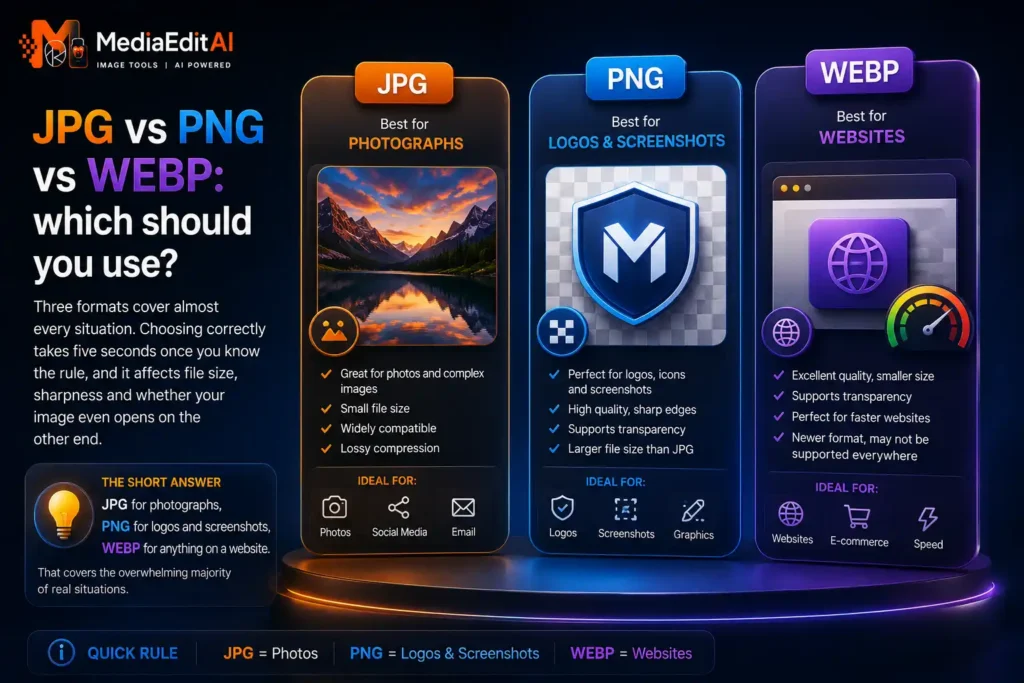

JPG vs PNG vs WEBP: which should you use?
Three formats cover almost every situation. Choosing correctly takes five seconds once you know the rule, and it affects file size, sharpness and whether your image even opens on the other end.
The short answer
If you only remember one thing: JPG for photographs, PNG for logos and screenshots, WEBP for anything on a website. That covers the overwhelming majority of real situations, and the rest of this guide explains why, so you can judge the edge cases yourself.
Two questions decide everything. Is the image a photograph or a graphic? And does it need a transparent background? Answer those and the format picks itself.
Lossy and lossless, the idea behind the whole thing
Every comparison of JPG vs PNG vs WEBP comes back to one distinction, so it is worth understanding properly.
Lossy compression permanently discards image data, choosing the detail human vision is least sensitive to. It produces very small files from photographs, where the eye forgives small colour shifts. The trade-off is that the loss is permanent, and re-saving repeatedly degrades the image a little each time.
Lossless compression stores the image exactly, finding patterns to describe the same data more efficiently. Nothing is lost and you can re-save endlessly, but files are far larger for photographs, because a photograph contains few repeating patterns to exploit.
This is why PNG is right for a logo made of flat colour and wrong for a holiday photo: flat colour compresses beautifully without loss, photographic noise does not.
JPG: the default for photographs
JPEG has carried the web for three decades and remains the correct answer for photographs going almost anywhere: email, upload forms, social media, a print shop. It compresses complex photographic detail extremely well, and absolutely everything can open it.
What it cannot do: transparency, and sharp-edged graphics. Save a logo or a screenshot containing text as JPG and you get fuzzy artefacts around every edge.
Typical size: a good quality photo at 1920 pixels lands somewhere between 200 and 800 KB.
PNG: for graphics, not photos
PNG is lossless and supports full transparency, which makes it right for logos, icons, screenshots, diagrams and anything with flat colour or crisp edges.
The most common mistake on the internet is saving a photograph as PNG. It sounds like the higher quality option, and technically it is lossless, but the same photo as PNG is often five to ten times larger than a well compressed JPG with zero visible benefit. Lossless only helps images that have flat areas and sharp boundaries.
Scan to open
JPG, PNG and WEBP in batches, with an exact size target. Free, in your browser, nothing uploaded.
WEBP: the modern default for websites
WebP is Google’s replacement for both JPG and PNG. It handles lossy and lossless compression, supports transparency and animation, and typically produces files 25 to 35 percent smaller than the equivalent JPEG at the same visual quality. Every modern browser supports it.
For anything you publish on a website, WEBP is now the sensible default. That size difference is meaningful: it affects page load time, which affects both your visitors and your search ranking through Core Web Vitals.
When not to use it: anywhere the file leaves the web. Some older software, print shops and upload forms still reject WEBP, so convert to JPG before sending a file to someone else.
Side by side
| Format | Compression | Transparency | Best for |
|---|---|---|---|
| JPG | Lossy | No | Photographs, universal compatibility |
| PNG | Lossless | Yes | Logos, screenshots, sharp edges |
| WEBP | Both | Yes | Website images, smallest files |
Deciding in five seconds
- Photograph going on a website → WEBP
- Photograph going anywhere else → JPG
- Logo, icon or screenshot → PNG, or WEBP if it is for a website
- Needs a transparent background → PNG or WEBP, never JPG
- Contains small text → PNG, never a heavily compressed JPG
Two formats worth knowing about but rarely choosing deliberately: HEIC, which iPhones shoot by default and which usually needs converting to JPG before sharing, and AVIF, which compresses better than WEBP but is not yet supported everywhere.
Frequently asked questions
Which format is best for a website?
WEBP for almost everything. It is 25 to 35 percent smaller than JPG at the same quality, supports transparency, and works in every modern browser. Keep PNG only for graphics that need lossless edges.
Is PNG better quality than JPG?
For graphics, yes. For photographs, no visible difference but a much larger file. PNG is lossless, which only helps images with flat colour and sharp boundaries.
Can I convert JPG to PNG to improve quality?
No. Converting to a lossless format cannot restore detail that was already discarded. You get a bigger file containing exactly the same visible information.
Why does my PNG turn white when I convert it to JPG?
JPEG has no alpha channel, so transparent pixels must be filled with a colour. White is the default, and our converter lets you choose a different background under Advanced.
Should I use AVIF instead of WEBP?
AVIF compresses better, particularly at low quality, but support is not yet universal and encoding is slower. WEBP with a JPG fallback remains the simpler choice for most sites.
What format do iPhones use?
HEIC by default since iOS 11. It saves real storage space but is poorly supported outside Apple devices, so convert to JPG before sharing or uploading.
JPG vs PNG vs WEBP explained
The choice between JPG, PNG and WEBP comes down to two questions: whether the image is a photograph or a graphic, and whether it needs a transparent background. Photographs compress well with lossy formats like JPG and WEBP, while graphics with flat colour and sharp edges need lossless formats like PNG.
For websites specifically, WEBP has become the sensible default. It supports both compression modes, handles transparency and animation, works in every modern browser, and produces files roughly a quarter to a third smaller than the equivalent JPEG. That difference matters for page speed and search ranking. PNG remains essential but for a narrower set of cases than most people assume, namely logos, icons, screenshots containing text, and images needing genuine transparency.
You can move between all three formats in batches with our free converter and compressor, which also lets you set an exact size in kilobytes. For a deeper comparison covering AVIF, HEIC, SVG, GIF and TIFF as well, see the full image format guide, and check the image size guide for the dimensions each platform expects.
