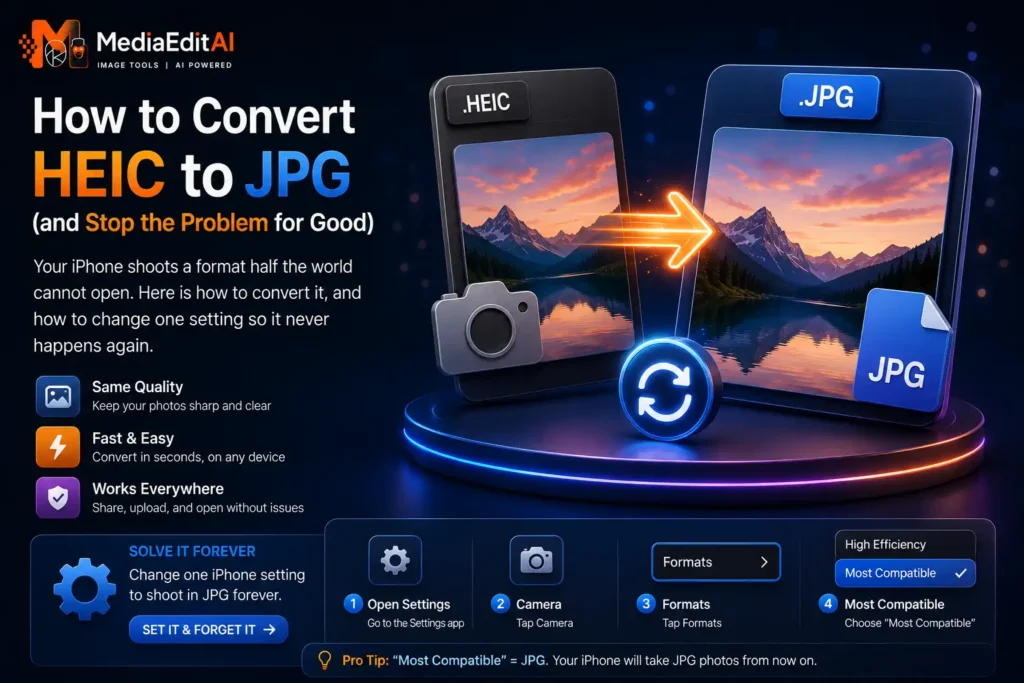

How to convert HEIC to JPG (and stop the problem for good)
Your iPhone shoots a format half the world cannot open. Here is how to convert it, and how to change one setting so it never happens again.
What HEIC is, and why your iPhone uses it
You send a photo from your iPhone to a colleague on Windows, and they cannot open it. You try to upload one to a job portal, and it is rejected. The file ends in .heic, and almost nothing outside the Apple world knows what to do with it.
HEIC is the container Apple adopted in 2017 with iOS 11. It stores roughly the same visual quality as JPEG in about half the space, which matters enormously when a phone holds thousands of photos. Technically it is an excellent format.
The problem is support. Windows needs an extra codec, most websites reject it, many Android phones cannot display it, and a large share of upload forms simply refuse the extension. So the practical answer is usually to convert HEIC to JPG before sharing anything.
How to convert HEIC to JPG
- Open the converterDrag your HEIC files onto the tool. You can add a whole batch at once rather than doing them one at a time.
- Choose JPG as the outputJPG is the safe universal choice. Every device, website and upload form accepts it.
- Set the qualityAround 85 percent keeps the result visually identical to the original at a fraction of the size. Lower it only if you also need to hit a strict file size limit.
- Resize if the destination is smallIf the photo is going to a form or a website, capping the longest side at 1920 pixels saves far more space than any quality adjustment.
- Convert and downloadEach file shows its original size, its new size and the saving. Download them individually or all at once.
Your photos stay on your device. The conversion runs entirely inside your browser, so holiday photos, documents and screenshots are never uploaded to a server. A useful side effect is that EXIF metadata, including the GPS coordinates recording where a photo was taken, is stripped from the output automatically.
Scan to open
Drop a whole batch, choose JPG, download. No account, no watermark, nothing uploaded.
How to stop your iPhone shooting HEIC
If you constantly need to share photos, you can change the camera setting once and avoid converting altogether.
- Open SettingsScroll down and tap Camera.
- Tap FormatsIt is the first option in the list.
- Choose Most CompatibleYour iPhone now shoots JPEG directly. Photos take roughly twice the storage space, but they open everywhere without conversion.
There is a second setting worth knowing. Under Settings, Photos, scroll to the bottom and choose Automatic under Transfer to Mac or PC. Your iPhone then converts HEIC to JPEG automatically when you transfer photos over a cable.
Does converting lose quality?
Slightly, and it is unavoidable. Both HEIC and JPEG use lossy compression, so converting between them means decoding one and re-encoding into the other. At 85 percent quality or above the difference is invisible at normal viewing sizes.
What you do lose is efficiency. The JPG will be noticeably larger than the HEIC it came from, often close to double, because JPEG is simply a less efficient codec. That is the price of universal compatibility.
| Format | Typical photo size | Opens on |
|---|---|---|
| HEIC | 1 – 2 MB | Apple devices, limited elsewhere |
| JPG | 2 – 4 MB | Everything |
| WEBP | 1.5 – 3 MB | All modern browsers |
If the photo is destined for a website rather than a person, consider WEBP instead. It sits between the two on size and works in every modern browser. Our format guide compares all of them.
If the form also has a size limit
Job portals and government sites frequently combine both constraints: JPG only, and under a certain number of kilobytes. Handle them in one pass rather than converting and then compressing separately.
Convert to JPG, cap the longest side at whatever the destination actually displays, then set an exact target in kilobytes. The tool searches for the highest quality that fits underneath your limit. Our guide on compressing an image to 100 KB walks through that process in detail, and the image size guide lists the dimensions passports, visas and CVs require.
Frequently asked questions
Why can nobody open my iPhone photos?
They are HEIC files. Apple uses the format by default because it halves storage, but Windows, most websites and many Android phones cannot read it without extra software.
Does converting HEIC to JPG reduce quality?
Very slightly, because both formats are lossy and converting means re-encoding. At 85 percent quality or above the difference is invisible. The JPG will be larger than the HEIC, often close to double.
Can I convert several HEIC files at once?
Yes. Add the whole batch, choose JPG, and convert them in a single pass. Each file reports its original size, new size and the saving.
How do I stop my iPhone creating HEIC files?
Settings, Camera, Formats, then choose Most Compatible. Your phone shoots JPEG directly from then on, using roughly twice the storage per photo.
Are my photos uploaded when I convert them?
No. The conversion happens inside your browser and your files never leave your device, which is why a batch of large photos stays fast.
Should I convert to JPG or WEBP?
JPG if you are sending the photo to a person or an upload form, since everything accepts it. WEBP if it is going on a website, because the file is smaller at the same quality.
Convert HEIC to JPG online, free
Needing to convert HEIC to JPG is one of the most common problems iPhone owners run into. Apple adopted HEIC in 2017 because it stores the same quality in roughly half the space of JPEG, which saves real storage on a phone holding thousands of photos. The drawback is compatibility: Windows needs an extra codec, most websites reject the format, and many upload forms refuse the extension outright.
Our free converter handles HEIC alongside JPG, PNG and WEBP, in batches, with an optional exact size target in kilobytes. Everything runs inside your browser using the canvas element, so your photos are never uploaded to a server, and camera metadata including GPS coordinates is removed from the output as a side effect of the conversion.
If you share photos regularly, changing your iPhone camera setting to Most Compatible removes the problem at the source, at the cost of larger files. Otherwise, keep shooting HEIC to save space and use the converter when you need to send something. For a fuller comparison of what each format is good at, read the image format guide, and see JPG vs PNG vs WEBP for choosing between the three main options.
