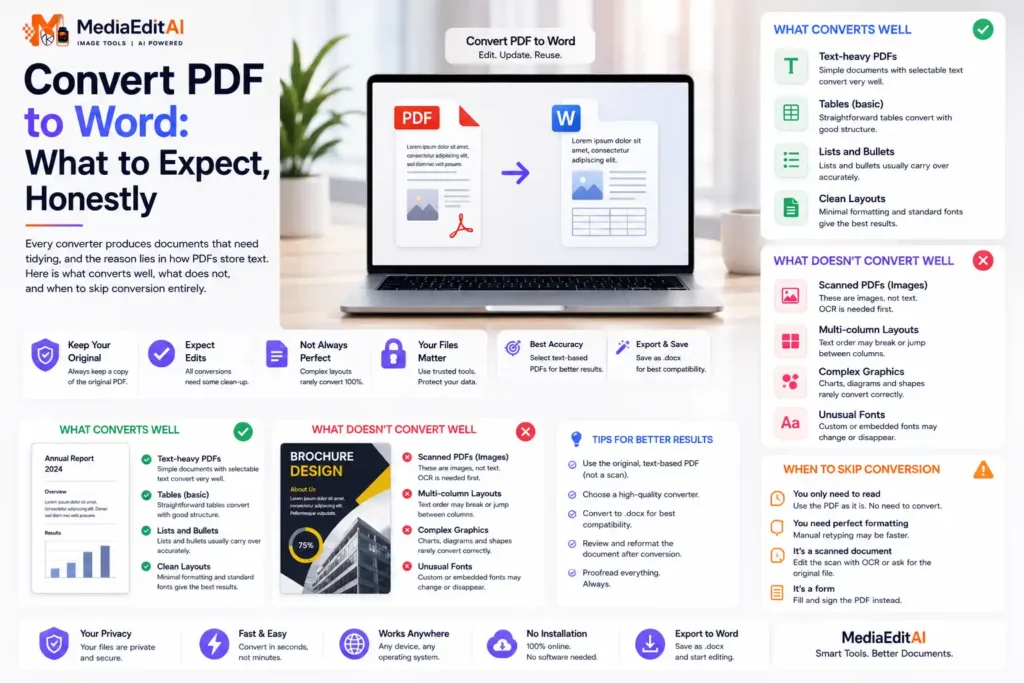

Convert PDF to Word: what to expect, honestly
Every converter produces documents that need tidying, and the reason lies in how PDFs store text. Here is what converts well, what does not, and when to skip conversion entirely.
Why PDFs are hard to edit in the first place
Someone sends you a PDF and asks for a small change. You open it, and there is nothing to click. This is not a flaw, it is the entire point of the format.
A PDF stores glyphs and images at fixed coordinates on a page. It records that a particular character sits at a particular position in a particular font, which is exactly why a PDF looks identical on every device, printer and operating system. What it does not store is structure: it has no concept of a paragraph, a heading, a table or a list.
Word documents are the opposite. They store structure and let the software decide the layout. So when you convert PDF to Word, a converter has to look at thousands of positioned characters and guess where the paragraphs, columns and tables were. That guess is the whole difficulty.
How to convert PDF to Word
- Open the converterDrop your PDF on. It opens immediately because nothing is uploaded.
- Choose a conversion modeLayout mode keeps text near its original position, which suits forms and certificates. Flow mode produces continuous editable paragraphs, which suits reports you intend to rewrite.
- Convert and previewCompare the result against the original before downloading.
- Download and tidy upOpen the DOCX in Word or Google Docs and fix whatever needs fixing. Expect to do some tidying, always.
No converter is perfect, and that includes the paid ones. Because a PDF does not record structure, every tool is reconstructing it. Adobe’s own converter, which has the advantage of having invented the format, still produces documents that need cleaning up. Anyone claiming perfect conversion is overpromising.
Scan to open
Layout and flow modes, with a preview before you download. Nothing uploaded, no watermark.
What converts well and what does not
| Document type | Expected result |
|---|---|
| Single column report, plain text | Very good, minor spacing fixes |
| CV or letter | Good, check alignment |
| Form with fields and boxes | Text recovered, layout approximate |
| Multi column magazine layout | Reading order often scrambled |
| Complex tables | Cells recovered, structure usually lost |
| Scanned document | Empty file, see below |
The pattern is consistent: the simpler the layout, the better the result. A plain report converts almost perfectly. A designed brochure with columns, sidebars and wrapped images does not, because reconstructing that reliably from coordinates alone is not a solved problem for anyone.
If your PDF is a scan, nothing will work
This surprises people, so it deserves its own section. If your PDF came from a scanner or a phone photograph, it contains images of pages, not text. There is no text layer to extract, so every converter returns an empty or nearly empty document.
Two quick tests: try selecting text with your cursor, or use Ctrl+F to search for a word you can clearly see. If neither works, it is a scan.
The only route in is optical character recognition, which reads the shapes in the image and reconstructs characters. Our OCR tool handles that, and the guide on extracting text from an image explains how to get accurate results.
Often you do not need Word at all
People convert to Word because it is the editing tool they know, but if the goal is a small change, editing the PDF directly is faster and preserves the layout perfectly.
- Correcting a typo or a date → cover it and retype with the PDF editor.
- Filling in a form → type directly into the blanks, no conversion needed.
- Adding a signature → place it on the page, as covered in signing a PDF online.
- Removing a page → use the split tool.
- Rewriting the whole document → this is the case where converting genuinely makes sense.
The rule of thumb: converting is worth it when you are rewriting substantially. For anything smaller, editing in place gives a better result with less work, because you never lose the original formatting.
Scan to open
Edit the PDF directly instead. Type on the page, cover mistakes, sign and fill forms.
Frequently asked questions
Why is my converted document messy?
Because a PDF stores characters at coordinates rather than as paragraphs and tables, so the converter reconstructs structure by inference. Simple single column documents convert well; multi column and heavily designed layouts do not.
Why is my converted file empty?
Your PDF is almost certainly a scan, containing images of pages rather than text. Try selecting text with the cursor: if you cannot, there is nothing to extract and you need OCR instead.
Do paid converters work better?
Somewhat on complex layouts, but none is perfect, including the one made by Adobe. The limitation comes from the format itself, so treat any claim of flawless conversion with scepticism.
Which mode should I choose?
Layout mode for forms and certificates where position matters. Flow mode for reports you intend to rewrite, since it produces continuous editable paragraphs.
Is my document uploaded anywhere?
No. The conversion runs in your browser and the file never leaves your device, which matters given that PDFs are often contracts and statements.
Can I just edit the PDF instead?
Usually yes, and often better. For typos, form filling, signatures or removing a page, editing directly with the PDF editor preserves the layout exactly.
Convert PDF to Word online, free
Wanting to convert PDF to Word is common, and understanding why it is imperfect saves a lot of frustration. A PDF stores characters at fixed coordinates rather than as structured paragraphs, headings and tables. Converters therefore have to infer that structure from position alone, which works well for simple layouts and poorly for complex ones. This is a property of the format, not a shortcoming of any particular tool, and paid converters face exactly the same problem.
Our free converter offers a layout mode that keeps text near its original position and a flow mode that produces continuous editable paragraphs, with a preview so you can compare before downloading. Everything runs in your browser, so contracts, statements and reports are never uploaded to a server.
If your PDF is a scan it contains images rather than text, and no converter can extract words that were never stored. Use the OCR tool instead. And for small changes, editing the file directly with the PDF editor preserves the layout perfectly and is usually faster than converting, editing and converting back.
