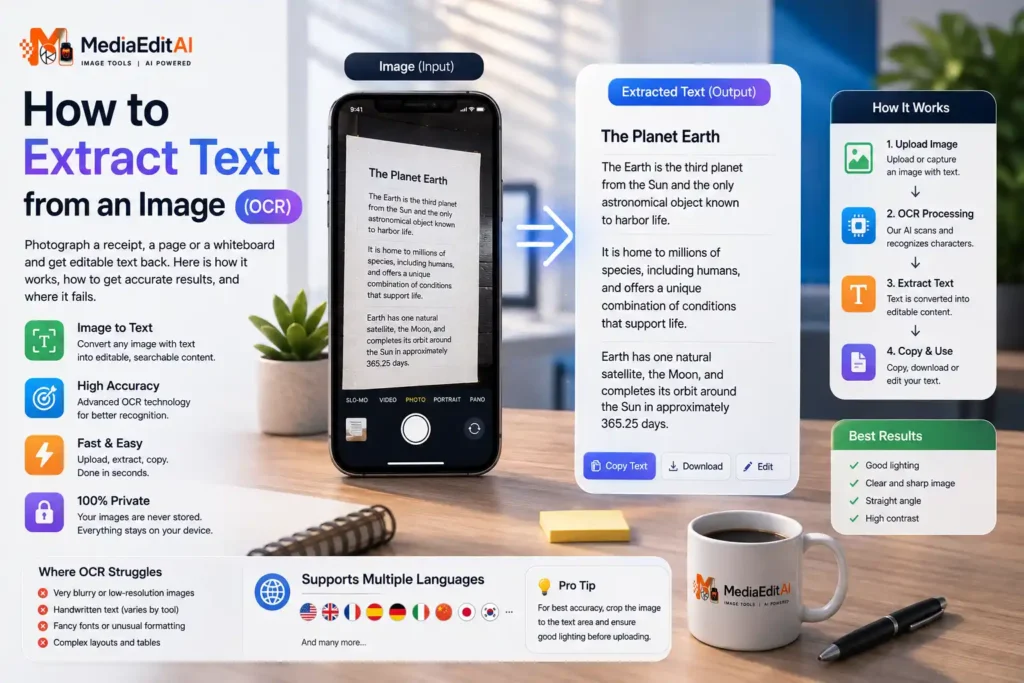

How to extract text from an image (OCR)
Photograph a receipt, a page or a whiteboard and get editable text back. Here is how it works, how to get accurate results, and where it fails.
What OCR actually does
You photograph a page of a book, a receipt, a whiteboard or a printed form, and you want the words as editable text rather than as an image. That conversion is called optical character recognition, usually shortened to OCR.
A photograph of text contains no text at all as far as a computer is concerned, only pixels that happen to look like letters to you. OCR examines those pixels, identifies the shapes as characters, and reconstructs words you can copy, search and edit. When you extract text from an image, this is the process doing the work.
What people actually use it for
- Receipts and invoices photographed for expenses, so the amounts can be typed into a spreadsheet without retyping everything.
- Printed documents that only exist on paper, turned back into editable text.
- Book and article pages captured for notes and quotations.
- Scanned PDFs that look like documents but contain no text layer, which is why searching them finds nothing.
- Screenshots where the text cannot be selected, such as an error message or a slide.
How to extract text from an image
- Open the OCR toolDrop your photo or screenshot onto it. The first run downloads a recognition model of a few megabytes, which is then cached, so subsequent images start immediately.
- Choose the languageThis matters more than people expect. The engine uses language specific character sets, so selecting the wrong one produces noticeably worse results. Arabic, French, English and nine others are available.
- Run the recognitionProcessing takes a few seconds depending on the image size and how much text it contains.
- Review and copyCheck the output against the image, particularly numbers. Then copy it or download it as a text file.
Everything runs on your device. The recognition engine is downloaded to your browser and processes the image locally, so a photographed payslip, contract or ID document is never uploaded to a server.
Scan to open
Twelve languages including Arabic. Runs in your browser, nothing uploaded, no account needed.
How to get accurate results
OCR quality depends far more on the input than on the engine. The same tool can produce a perfect transcription or unusable nonsense from the same page, depending on how it was photographed.
Light the page evenly
Shadows are the biggest single cause of failure, especially the shadow of your own phone. Diffuse daylight beside a window beats a direct overhead lamp.
Shoot straight on
Photograph from directly above, parallel to the page. Angled shots distort letter shapes, and the engine is matching shapes.
Fill the frame
Get close enough that the text occupies most of the image. A page photographed from a metre away leaves too few pixels per character to identify reliably.
Keep it sharp and flat
Tap to focus before shooting, and flatten curled pages. Motion blur and page curve both distort characters beyond recognition.
Where OCR struggles
It is worth knowing the limits before you rely on the output for anything important.
| Input | Expected result |
|---|---|
| Clean printed text, good photo | Excellent, near perfect |
| Receipt on thermal paper | Good, but check the numbers |
| Complex tables and columns | Text recovered, layout usually lost |
| Handwriting | Poor, this engine reads print, not script |
| Stylised or decorative fonts | Unreliable |
Always proofread numbers. Recognition confuses visually similar characters, particularly 0 and O, 1 and l, 5 and S, and 8 and B. On an invoice that difference matters.
Scanned PDFs and why search finds nothing
A scanned PDF is a stack of photographs wearing a document’s clothing. It looks like text, but searching it returns no results, and converting it to Word produces an empty file, because there is no text layer to extract.
OCR is the only route in. Convert the page to an image, run recognition, and you have text you can work with. This is also why our PDF to Word tool cannot help with a scan: no tool can extract text that was never stored, which is a limit of the format rather than of any particular converter.
Frequently asked questions
Does OCR work with Arabic?
Yes. Arabic is one of twelve supported languages. Selecting the correct language before running recognition matters, because the engine uses language specific character sets.
Can it read handwriting?
Not reliably. This engine is trained on printed text. Neat block capitals sometimes work, but cursive handwriting produces poor results.
Why is the first run slow?
The recognition model is downloaded to your browser on first use, a few megabytes. It is then cached, so every image after that starts immediately.
Are my images uploaded to a server?
No. The engine runs inside your browser and processes the image locally, which is why a photographed payslip or ID never leaves your device.
Why does my scanned PDF return no text when I search it?
Because it contains photographs of pages, not text. There is no text layer to search. Running OCR on the pages is the only way to recover the words.
How accurate is it?
Very accurate on clean printed text photographed well. Always proofread numbers, since recognition confuses 0 with O, 1 with l and 5 with S, which matters on an invoice.
Extract text from an image online, free
To extract text from an image you need optical character recognition, an engine that examines the pixels of a photograph and identifies the shapes as characters. Our free OCR tool does this entirely inside your browser, supporting twelve languages including Arabic, French and English, with no account and no upload.
Results depend heavily on the photograph. Even lighting, a straight overhead angle, a filled frame and sharp focus make the difference between a near perfect transcription and unusable output. Clean printed text recognises extremely well, receipts recognise well enough with a check on the numbers, and handwriting does not recognise reliably at all, since the engine is trained on print.
OCR is also the only way into a scanned PDF, which contains images rather than text and therefore cannot be searched or converted directly. Everything runs on your own device, which matters because the documents people photograph tend to be payslips, invoices and identity papers. Once you have the text, the PDF editor lets you type it back onto a document, and the image to PDF tool turns a set of photos into a single file.
