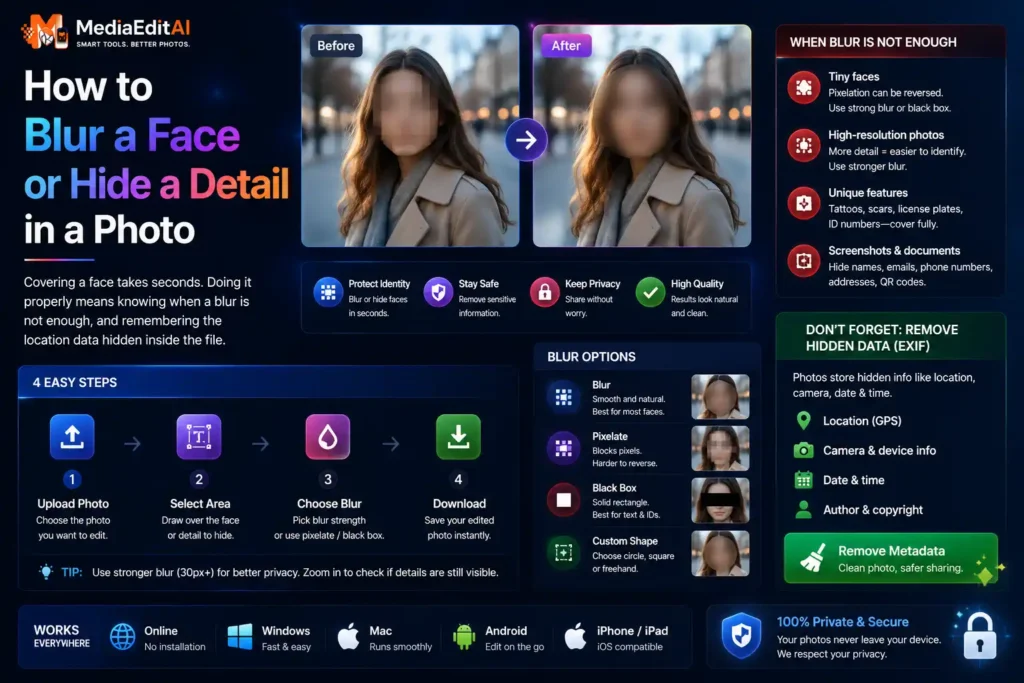

How to blur a face or hide a detail in a photo
Covering a face takes seconds. Doing it properly means knowing when a blur is not enough, and remembering the location data hidden inside the file.
When hiding a detail is the responsible thing
You want to post a photo from a school trip, a busy street or a workplace, and other people are in it who never agreed to appear online. Or you are selling a car and the number plate is clearly readable. Or you are sharing a screenshot that happens to include an email address, an account number or a home address.
To blur a face or any other detail is the simplest way to share the picture without sharing the part that identifies someone. It takes seconds, and in several jurisdictions it is not merely polite: publishing identifiable images of people without consent can breach privacy law.
How to blur a face in a photo
- Open the toolDrop your photo on. It loads instantly because nothing is uploaded to a server.
- Draw over what should be hiddenCover the face, plate or text. Extend slightly beyond the edges rather than stopping exactly at them.
- Choose the strengthBlur for something you want softened, or a solid block for information that must be unreadable. The next section explains when each is appropriate.
- Check at full sizeZoom in. A blur that looks sufficient on a thumbnail can still be legible at full resolution.
- DownloadThe edit is permanently written into the exported image.
Blur and block are not equally safe. A light blur softens a face but can leave enough shape to identify someone who is already known to the viewer. For anything that must genuinely be unreadable, such as a bank card number or an address, use a solid block rather than a blur.
Scan to open
Cover any part of a photo and export it permanently hidden. Nothing uploaded, no watermark.
Choosing blur or block
| What you are hiding | Use |
|---|---|
| Bystanders in a public photo | Blur, strong enough that features are gone |
| A child’s face | Strong blur or a block |
| Number plate | Block, plates are short and guessable |
| Bank card, IBAN, ID number | Block, always |
| Email or home address | Block |
The rule of thumb: blur is for anonymising a person, block is for destroying data. Short strings of characters are the dangerous case, because a determined viewer can often reconstruct them from a weak blur when the format is predictable.
The part people forget entirely
You can blur every face perfectly and still publish exactly where the photo was taken. Cameras and phones write EXIF metadata into image files: the device model, the date and time, and frequently GPS coordinates accurate to a few metres.
A photo taken at home carries your home address in a form nobody sees but anyone can read. Some social platforms strip this on upload, many do not, and a file sent directly by email or messaging app almost always keeps it.
The good news is that it is easy to remove. Any tool that redraws the image from pixels, including our blur tool and the converter, produces an output with no EXIF at all, because the data is not copied across. Running a photo through either one strips the location automatically.
Checking your work before publishing
- Zoom to 100 percent. The most common failure is a blur that looks fine at screen size and is readable at full resolution.
- Look at reflections. Faces appear in windows, mirrors, car paint and sunglasses more often than people expect.
- Check the edges of the frame. A partially visible face at the border still identifies someone.
- Read the background text. Notice boards, name badges, delivery labels and screens frequently carry names and addresses.
- Confirm the export. Verify the downloaded file, not the preview, since the preview is not what you are sending.
The same problem in documents
PDFs need the same care with an extra trap. Covering text in a PDF with a white or black box and saving normally leaves that box as a movable object: the recipient can drag it aside and read what is underneath. This has caused several well publicised leaks of supposedly redacted documents.
The fix is flattening, which merges your covers permanently into the page. Use the PDF editor, cover what must be hidden, and download the flattened version rather than the standard one. Our guide on signing a PDF online explains flattening, since the same mechanism protects a signature.
Scan to open
Cover sensitive details and download a flattened PDF so nothing can be uncovered.
Frequently asked questions
Is blurring enough to protect someone identity?
For anonymising a bystander, a strong blur is generally enough. For short predictable strings such as a number plate or a card number, use a solid block instead, since a weak blur can sometimes be reconstructed.
Do I legally need consent to post photos of people?
Rules vary by country, but many jurisdictions restrict publishing identifiable images without consent, particularly for children. Blurring faces avoids the question entirely.
What is EXIF data and why does it matter?
Metadata written into the file by your camera: device model, date, and often GPS coordinates accurate to a few metres. A photo taken at home can therefore reveal your address even with every face blurred.
How do I remove EXIF data?
Run the photo through any tool that redraws it from pixels, including our blur tool and converter. The metadata is simply not carried across to the new file.
Why can people undo redaction in PDFs?
Because a cover box saved normally remains a separate movable object that can be dragged aside. Downloading the flattened version merges it permanently into the page.
Are my photos uploaded when I blur them?
No. Everything runs inside your browser, which matters here in particular, since these are photos containing other people or private details.
Blur a face or hide a detail in a photo, free
Being able to blur a face before sharing a photo is basic courtesy toward the people who happen to be in it, and in several jurisdictions a legal requirement. The same tool hides a number plate, an address on a delivery label, or an account number caught in a screenshot.
Two distinctions matter. First, blur anonymises a person while a solid block destroys data: for short predictable strings like a plate or a card number, always use a block, since a weak blur can be reconstructed. Second, check your work at full resolution, because a blur that looks sufficient on screen is often legible when zoomed.
The forgotten risk is metadata. Photos carry EXIF data including GPS coordinates accurate to a few metres, so a perfectly blurred photo can still publish your home address. Our blur tool and converter both redraw the image from pixels, which removes EXIF automatically. For documents, use the PDF editor and download the flattened version, since an unflattened cover can simply be dragged aside.
