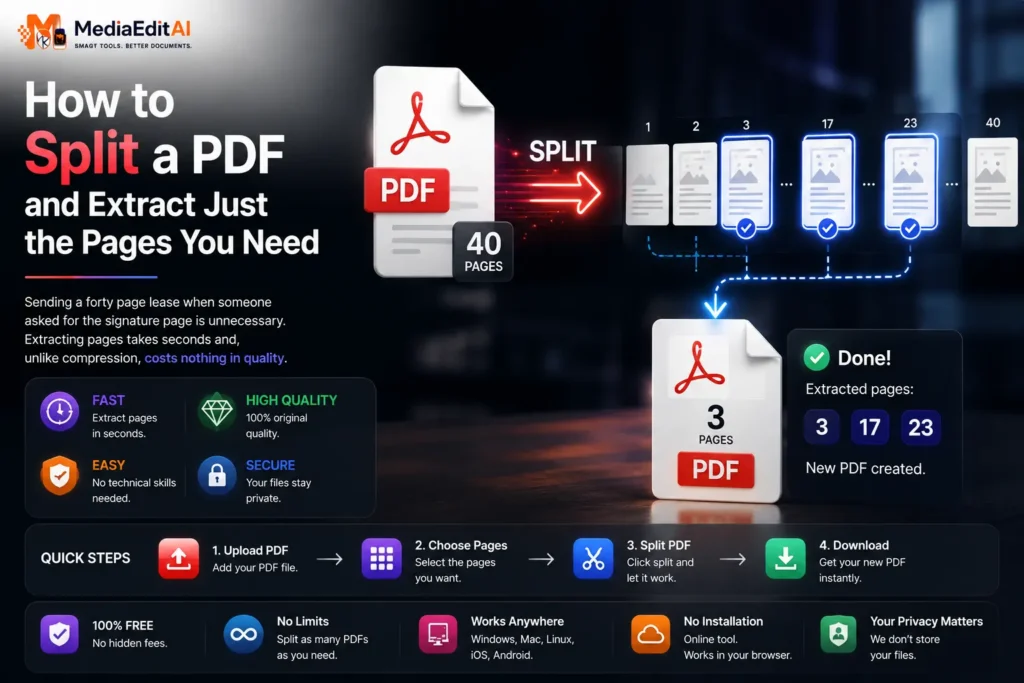

How to split a PDF and extract just the pages you need
Sending a forty page lease when someone asked for the signature page is unnecessary. Extracting pages takes seconds and, unlike compression, costs nothing in quality.
When you need part of a document, not all of it
A landlord asks for the signature page of a forty page lease. An accountant needs three months from a year of statements. A form arrives as a fifty page pack and only pages 12 to 15 apply to you. Sending the whole file is lazy, sometimes exposes information nobody asked for, and often exceeds an upload limit.
To split a PDF is to extract exactly the pages you need into a new document, leaving the original untouched. It takes seconds and, unlike compression, costs you nothing in quality.
Three different things people mean by splitting
Extracting a range
Keeping pages 12 to 15 and discarding the rest. This is the most common case, and the one that solves upload limits instantly, since dropping forty pages of a forty five page document removes almost all of its size.
Removing specific pages
Keeping everything except a blank page, a duplicate scan or a page containing details you would rather not share.
Separating into individual files
Turning a scanned batch of twenty invoices into twenty separate documents, so each can be filed or sent on its own.
How to split a PDF
- Open the split toolDrop your document on. Every page renders as a thumbnail so you can see what you are selecting.
- Select the pages you wantEnter a range such as 12-15, or click individual thumbnails. Check the thumbnails rather than trusting the page numbers printed on the page, since they often differ from the actual position in the file.
- Choose the outputOne document containing your selection, or separate files, one per page.
- DownloadThe original file on your disk is never modified.
Splitting loses no quality at all. Pages are copied into a new container exactly as they were, with no re-encoding. This is why extracting pages is almost always better than compressing when you only need part of a document.
Scan to open
Select a range or individual pages and download. No quality loss, nothing uploaded.
Splitting as a size solution
People reach for a compressor when a document is too large for a portal, but if you only need part of it, splitting is the better answer.
| Situation | Better approach |
|---|---|
| Need 4 pages of 50 | Split, roughly 90 percent smaller, zero quality loss |
| Need all pages, file too big | Compress, accepting softer images |
| Need all pages, several documents | Merge then compress the result |
Compression resamples the images inside your pages, so scanned text becomes softer and may stop being searchable, as covered in compressing a PDF. Splitting has no such cost, which makes it the first thing to try.
Removing pages is not the same as redacting
This distinction matters and catches people out. Removing a whole page from a document does genuinely remove it, and the extracted file contains only what you selected.
But if the information you want to hide sits on a page you are keeping, splitting does not help. Covering it with a white or black box and downloading normally leaves that box as a movable object, which the recipient can drag away. Only flattening merges it permanently into the page.
The safe sequence for a sensitive document is: split off the pages you need, cover what must be hidden with the PDF editor, then download the flattened version. Our guide on signing a PDF online explains flattening in more detail, since the same rule applies to signatures.
Splitting and merging together
The two tools are frequently used in sequence. A common pattern for an application: split the pages you need out of several long documents, then merge those extracts into a single clean file in the order the portal expects.
The result is smaller, tidier and contains nothing the recipient did not ask for, which is usually the point. Our guide on merging PDF files covers the second half of that workflow.
Scan to open
Merge your selected pages into one clean document in the order you choose.
Frequently asked questions
Does splitting reduce the quality of the pages?
No. Pages are copied into a new document exactly as they were, with no re-encoding at all. This is why splitting is preferable to compressing when you only need part of a file.
Can I extract non consecutive pages?
Yes. Select individual thumbnails, or enter a mixed range. They are collected into one document in the order they appear.
Can I split a scanned batch into separate files?
Yes. Choose the option that produces one file per page, which is the usual way to separate a batch of scanned invoices or receipts.
Is removing a page the same as redacting it?
Only if the information is on a page you remove entirely. If it sits on a page you keep, you must cover it with the PDF editor and download the flattened version, or the cover stays movable.
Is my document uploaded anywhere?
No. Splitting happens inside your browser, which matters because the documents people split are usually leases, statements and contracts.
Can I split a password protected PDF?
Not directly. Remove the password first with the unlock tool, which works on documents you already have the password for.
Split a PDF and extract pages, free
To split a PDF is to pull the pages you actually need into a new document. It covers three related tasks: extracting a range such as pages 12 to 15, removing specific pages like blanks or duplicates, and separating a scanned batch into individual files.
Unlike compression, splitting costs nothing in quality. Pages are copied into a new container exactly as they were, with no re-encoding, which is why extracting four pages from a fifty page document is almost always better than compressing the whole thing when a portal rejects it for size.
One caution worth repeating: removing a page removes its content, but hiding information on a page you keep requires covering it and then flattening the document, otherwise the cover remains a movable object. Our split tool runs entirely in your browser, so leases, statements and contracts are never uploaded, and it pairs naturally with the merge tool for building a clean application file and the PDF editor for redacting properly.
