
Instagram image size: every dimension for 2026
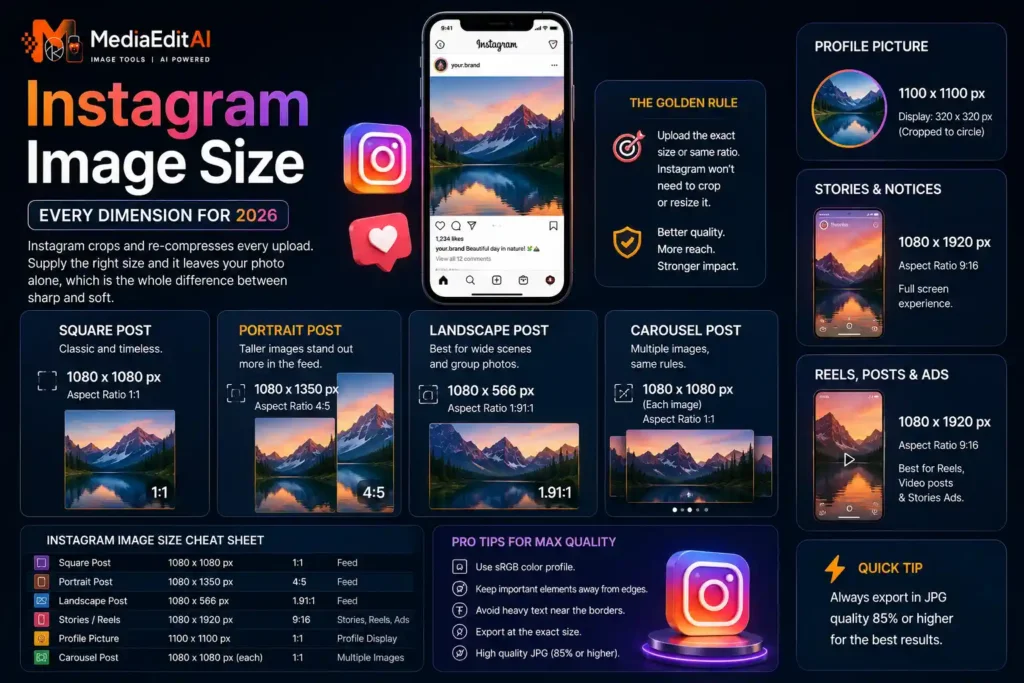
Instagram crops and re-compresses every upload. Supply the right size and it leaves your photo alone, which is the whole difference between sharp and soft.
Why the wrong size ruins a good photo
You upload a carefully framed photo to Instagram and the platform crops the top of someone’s head off. Or the image looks soft and blurry compared to how it looked on your phone. Neither is bad luck: it happens because Instagram crops and re-encodes every upload to fit fixed shapes, and if you do not supply the right shape, it decides for you.
Getting the Instagram image size right before uploading solves both problems at once. The platform has less work to do, so it compresses less aggressively, and nothing important gets cut off.
Every Instagram size in 2026
Instagram uses a handful of fixed placements. These are the dimensions that produce the sharpest result in each one.
| Placement | Pixels | Ratio |
|---|---|---|
| Square post | 1080 × 1080 | 1:1 |
| Portrait post | 1080 × 1350 | 4:5 |
| Landscape post | 1080 × 566 | 1.91:1 |
| Story / Reel | 1080 × 1920 | 9:16 |
| Profile picture | 320 × 320 | 1:1 |
The number that matters most is 1080 pixels wide. Instagram displays feed images at that width, so anything larger is thrown away and anything smaller gets upscaled and looks soft.
Portrait posts take the most space. A 4:5 image at 1080 × 1350 occupies more vertical room in the feed than a square, which means more time on screen as people scroll. If you are choosing a shape, this is usually the one.
How to resize a photo for Instagram
- Open the resizerDrop your photo onto the tool. It opens instantly because nothing is uploaded to a server.
- Pick the Instagram presetChoose square, portrait, landscape or story. The exact pixel dimensions are already set, so there is nothing to remember.
- Check the framingIf your original has a different shape, decide what gets cropped rather than letting the platform choose. Faces and text should sit away from the edges.
- Export as JPGAround 85 percent quality is ideal. Instagram re-encodes anyway, so there is no benefit to sending a 12 MB file.
- UploadBecause the dimensions already match, Instagram scales nothing and your photo keeps its detail.
Scan to open
Every placement preset ready to use, plus YouTube, TikTok, LinkedIn and more. Free, nothing uploaded.
Safe areas: where not to put text
Several placements hide parts of your image behind interface elements. Text that looks perfectly positioned in your editor can end up underneath a button.
- Stories and Reels: roughly the top 250 and bottom 250 pixels are covered by the profile bar, caption and action buttons. Keep anything important in the middle band.
- Reel covers: the video plays at 9:16, but the grid preview on your profile crops it to a square. Anything at the top or bottom of the cover disappears from the grid.
- Profile pictures: displayed as a circle, so the corners of your square image are always cut. Centre the subject.
Why your photos still look blurry
If the dimensions are right and the image still looks soft, one of three things is happening.
You uploaded something too large
Sending a 4000 pixel image means Instagram downscales it with its own algorithm, tuned for their storage costs rather than your quality. Resizing to 1080 yourself gives a better result.
You uploaded something too small
An 800 pixel image gets stretched to 1080, and upscaling invents detail that was never there. Always start from an original at least as large as the target.
The file was already heavily compressed
Every save of a JPG discards a little more detail, because lossy compression is cumulative. If you have edited and re-saved the same file several times, artefacts are baked in before Instagram ever sees it. Work from the original each time.
Which format to upload
JPG, at around 85 percent quality. Instagram converts everything to its own format anyway, so there is nothing to gain from uploading PNG, and a PNG photograph is many times larger for no visible benefit. Our JPG vs PNG vs WEBP guide explains why in detail.
If your photos come from an iPhone they may be HEIC, which Instagram accepts but many editing tools do not. Converting to JPG first keeps everything predictable, and our guide on converting HEIC to JPG covers that in a few clicks.
Scan to open
Nine ratios with a live grid, so you control what gets cut instead of the platform.
Frequently asked questions
What is the best Instagram post size?
1080 × 1350 pixels, a 4:5 portrait. It occupies the most vertical space in the feed, which means more time on screen as people scroll past.
Why does Instagram make my photos blurry?
Usually because you uploaded an image much larger or smaller than 1080 pixels wide. Instagram then rescales it with its own algorithm. Resize to 1080 yourself and the result is noticeably sharper.
What size is an Instagram story?
1080 × 1920 pixels, a 9:16 ratio. Keep text and faces away from the top and bottom 250 pixels, which sit behind the interface.
Should I upload JPG or PNG to Instagram?
JPG at around 85 percent quality. Instagram re-encodes everything anyway, so a PNG photograph is simply a much larger file for no visible gain.
Can I post a photo without cropping it?
Only if its ratio already matches one Instagram supports. Otherwise the platform crops it, so it is better to crop deliberately yourself using the crop tool.
Are my photos uploaded to your server when I resize?
No. The resizer runs entirely inside your browser and your images never leave your device.
Instagram image sizes and how to resize for them
Using the correct Instagram image size is the simplest way to make your photos look sharper on the platform. The essential number is 1080 pixels wide, with 1080 × 1080 for square posts, 1080 × 1350 for portrait, 1080 × 566 for landscape and 1080 × 1920 for stories and reels. Matching those dimensions before uploading means Instagram scales nothing, so it compresses less and your detail survives.
Aspect ratio matters more than raw pixel count. Instagram crops every upload to a fixed shape regardless of what you send, so matching the ratio is what prevents a face or a headline being cut off. The pixel dimensions listed simply supply enough resolution for high density phone screens at that ratio.
Our free platform resizer has every Instagram placement built in as a preset, alongside YouTube, TikTok, LinkedIn, Facebook and Pinterest. For controlling exactly what gets cropped, use the crop tool with its live ratio grid, and see the full image size guide for dimensions across all ten platforms. Everything runs in your browser, so your photos are never uploaded.
